Hilt Set Processor
This tool was made for developers, specifically modellers and lightsaber makers, for help and efficiency in importing, configuring and testing imported lightsabers. Currently, it provides access to 3 features, detailed in the following 3 subsections.
Importing New Hilts
Naming
During the process of making the lightsaber, you should name the individual models with various keywords to denote their purpose in the lightsaber. These keywords then get parsed, and decisions get made during the importing process that result in what those parts will become. There are 4 sections that all parts may fall under:
- The pommel - the bottom of the hilt, often just detailing or containing attachments for attaching the hilt to a belt
"pommel", "endcap", "cap"
- The grip - the main, long section where your hand would go to hold the hilt
"grip", "body", "handle", "handel", "handol"
- The switch - the buttons for configuring and igniting/extinguishing the lightsaber blade
"switch", "switche"
- The emitter - the top of the hilt, where the blade comes out from
"emitter", "emiiter", "emmiter", "emiter", "emmitur", "ommiter", "emiitter"
- There is technically a 5th and 6th section, the double grip and staff sections, but they function kind of like a second and third extended grip sections, and parts with any of the following keywords will be put inside that them, respectively
"handle_long", "long", "griplong", "grip_long", "long_grip", "handlelong", "handle.long", "long.handle", "longhandle", "longgrip", "long_grip", "long_handle", "double_handle", "double.grip" "staff", "staf", "staaf", "pike", "pyke"
Multiple keywords can be in the same part's name, and the names are case-insensitive!
There are 4 kinds of parts that a specific hilt part may be:
- The root part
"root", "roott", "core"
- Only 1 per section
- All other details are attached to this part, per section
- Only this part is used when calculating bounding boxes for the hilt, so details may go outside that box and not affect how the player ends up holding the hilt
- A primary part
"prim", "primary", "prime"
- As many as you want
- Detailing, where applying materials will also colour in this part
- A fixed hilt part
"fixed", "fixt", "fixet", "fxed", "fxd"
- As many as you want
- Detailing, but materials don't have an effect on this part
- Therefore useful for parts of the saber with custom textures, colours or
BasePartMaterials.
- A crystal part
"crystal", "krystal", "kyber"
- As many as you want, but logically you'd only ever have 1
- Will be coloured in by the colour of the crystal the player has selected
- Useful when hilts have "bare crystals"
Here are some examples:
switch_rootwould turn into the root part for the switchprime_bodywould turn into a material-influenced detail part on the gripblablah_EMiiter-Crystal-someotherwordswould turn into a crystal part on the emitter (like Lord Corvax's), irrelevant to all the other words and characters in various cases present in the name - it even ignores a misspelling of the emitter.
Example Walk-Through
As an example below, let us take the Tooter hilt from the 2024 April Fools update:

Here we see the MeshParts all imported and parented under a single Model called Tooter.
Let's take a closer look:
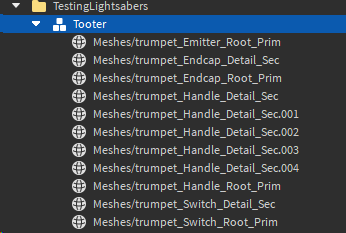
Notice how they are all named with the various selections of keywords.
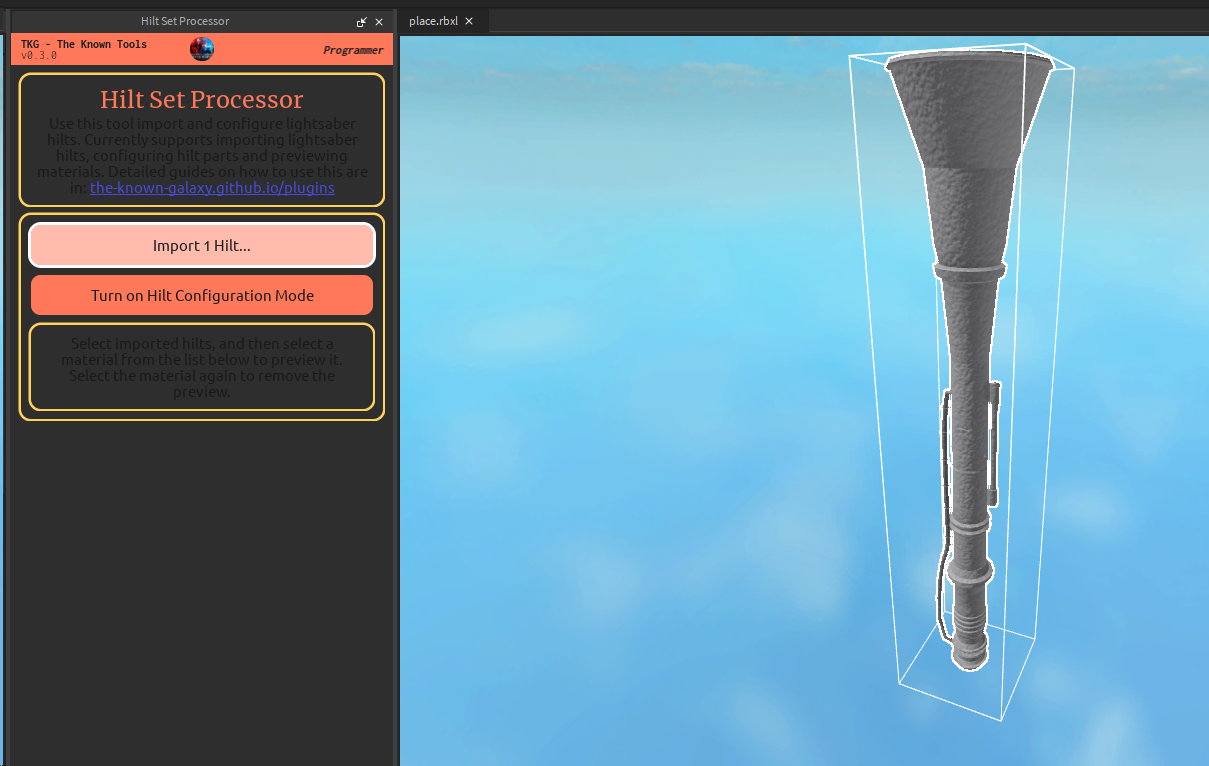
Then, we click the Import 1 Hilt... button and the result is created 5 studs above it:
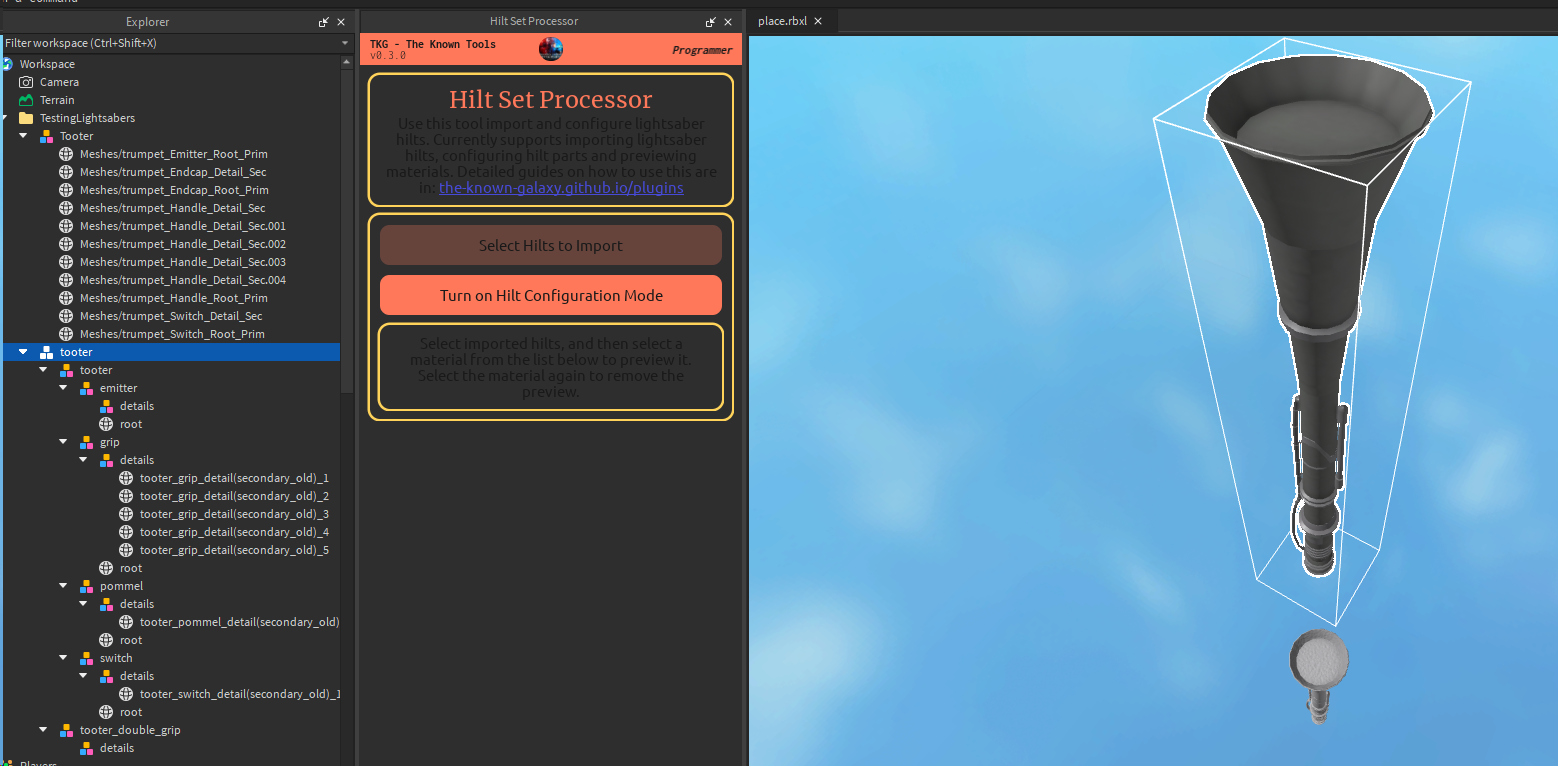
Notice the new structuring too. The Tooter hilt doesn't have a double handle so it doesn't have any actual parts go into it.
Previewing Materials
Now that you've imported the lightsaber, you can preview materials on it to see how it would look in-game! Simply select the imported hilt model at the root:
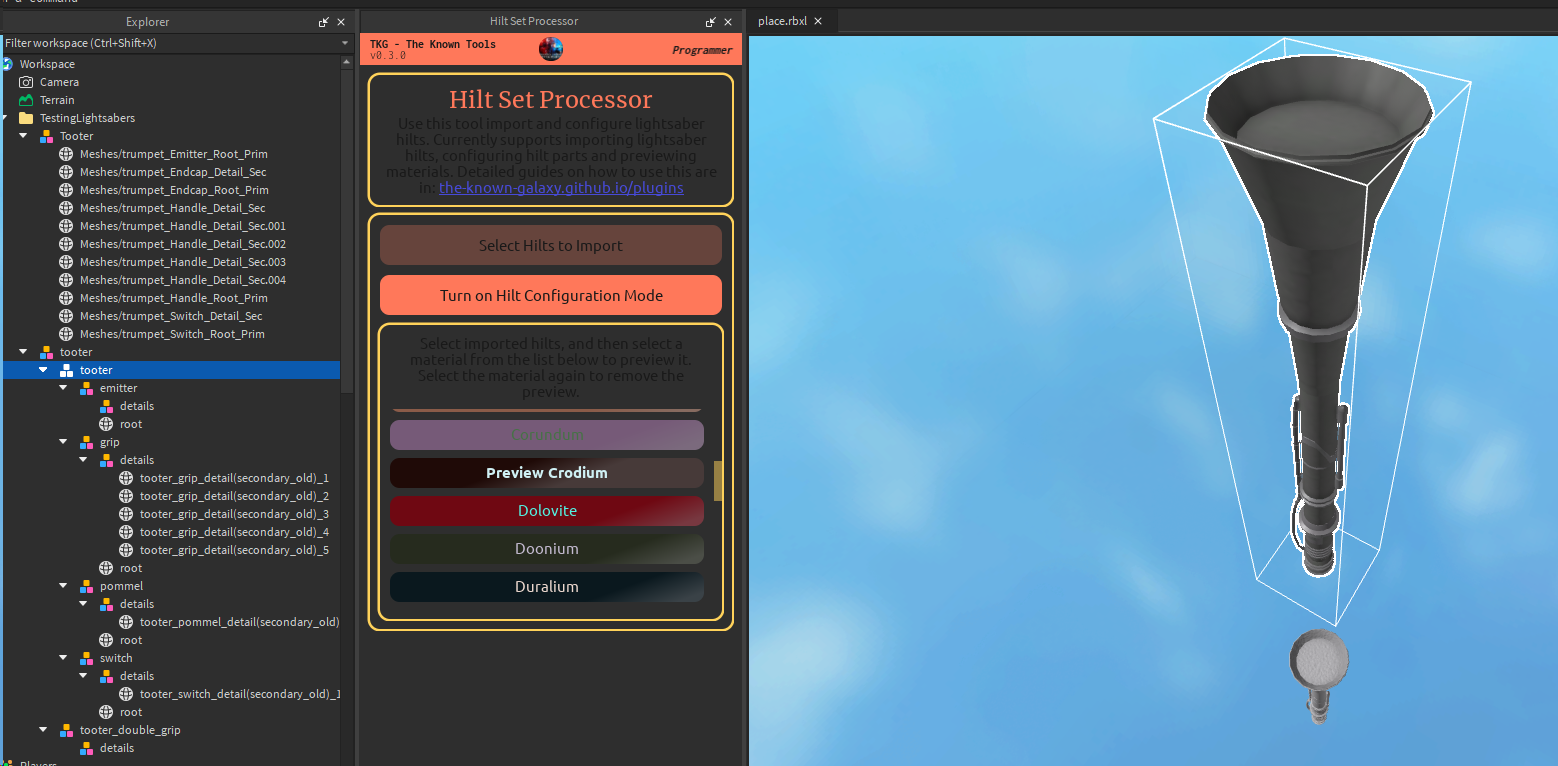
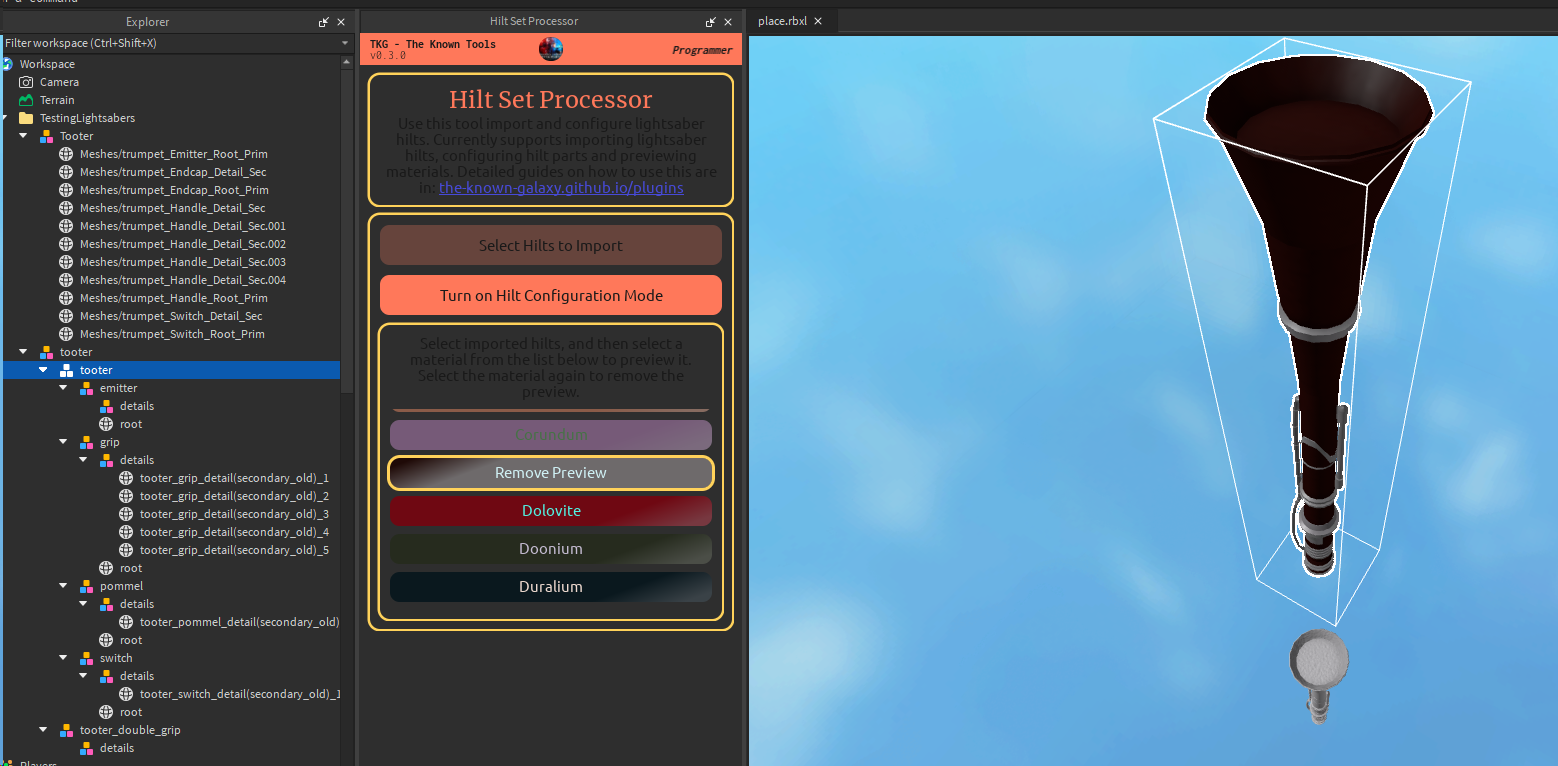
Configuring Hilt Parts
If after importing, you realise some parts of the lightsaber were named incorrectly or you want to change what parts get influenced by the materials, then you can do that with configuration mode!
- Enable Configuration Mode from the plugin.
- This will remove your current selection of parts,
- but will select them back later when you've disabled configuration mode.
- Select a specific
BasePartinside an imported hilt with Left Mouse Button. - Select one of the context options from the context menu that pops up.
- Rinse and repeat until you're done making the changes you need.
- Turn off configuration mode by toggling the button again.
Turning on:
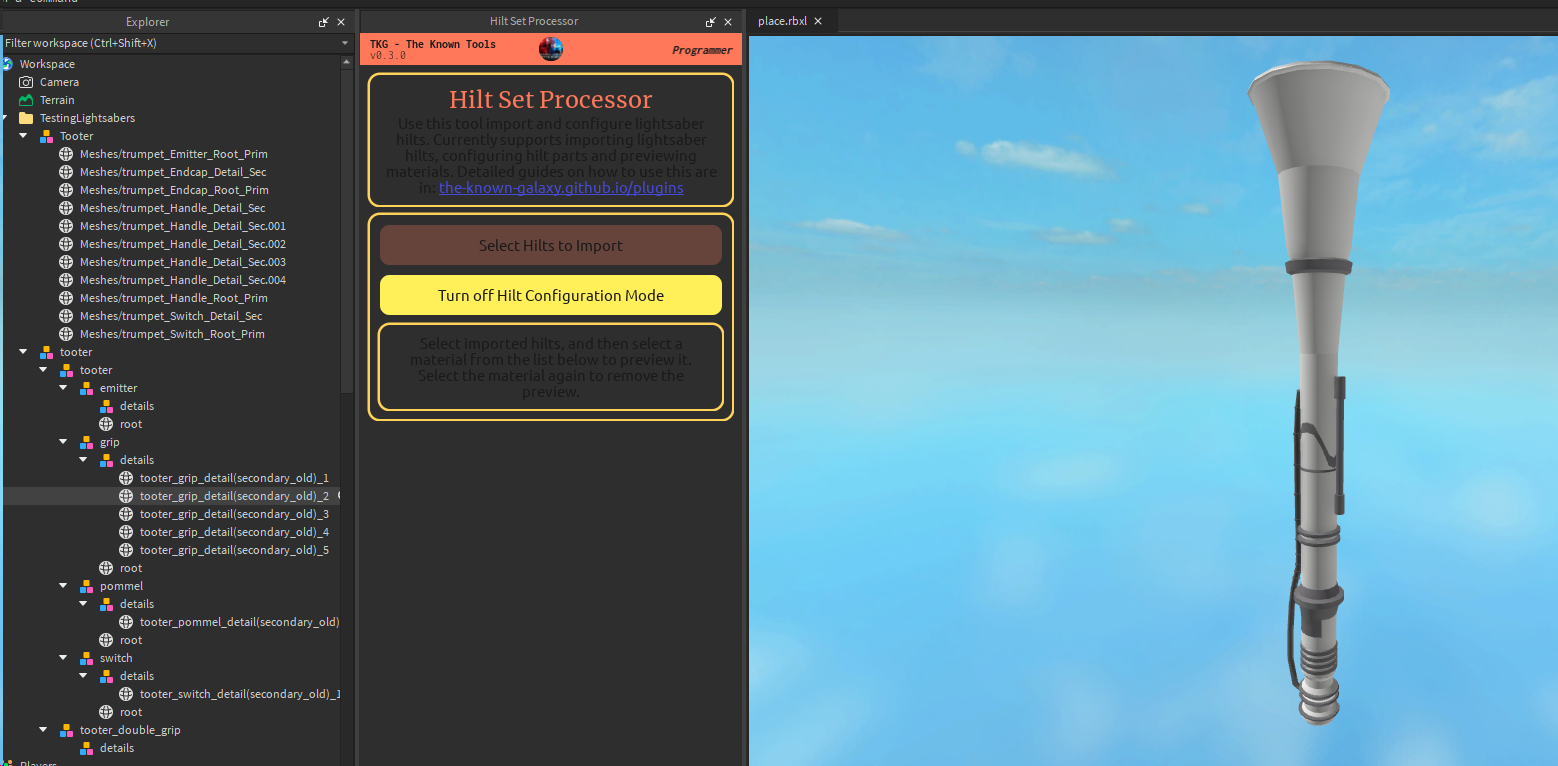
Selecting the fixed part to configure.
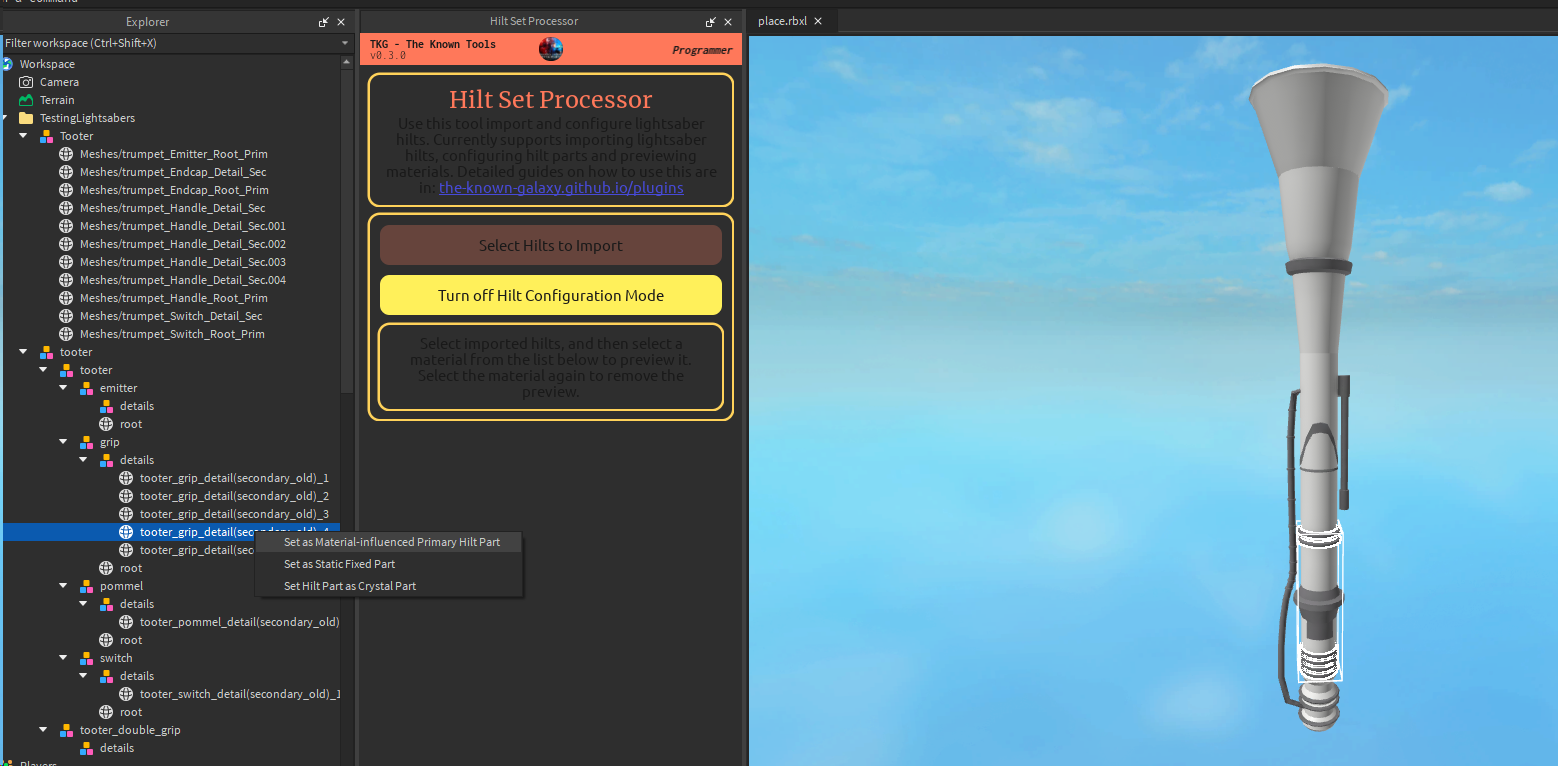
Closing configuration mode and previewing a material.
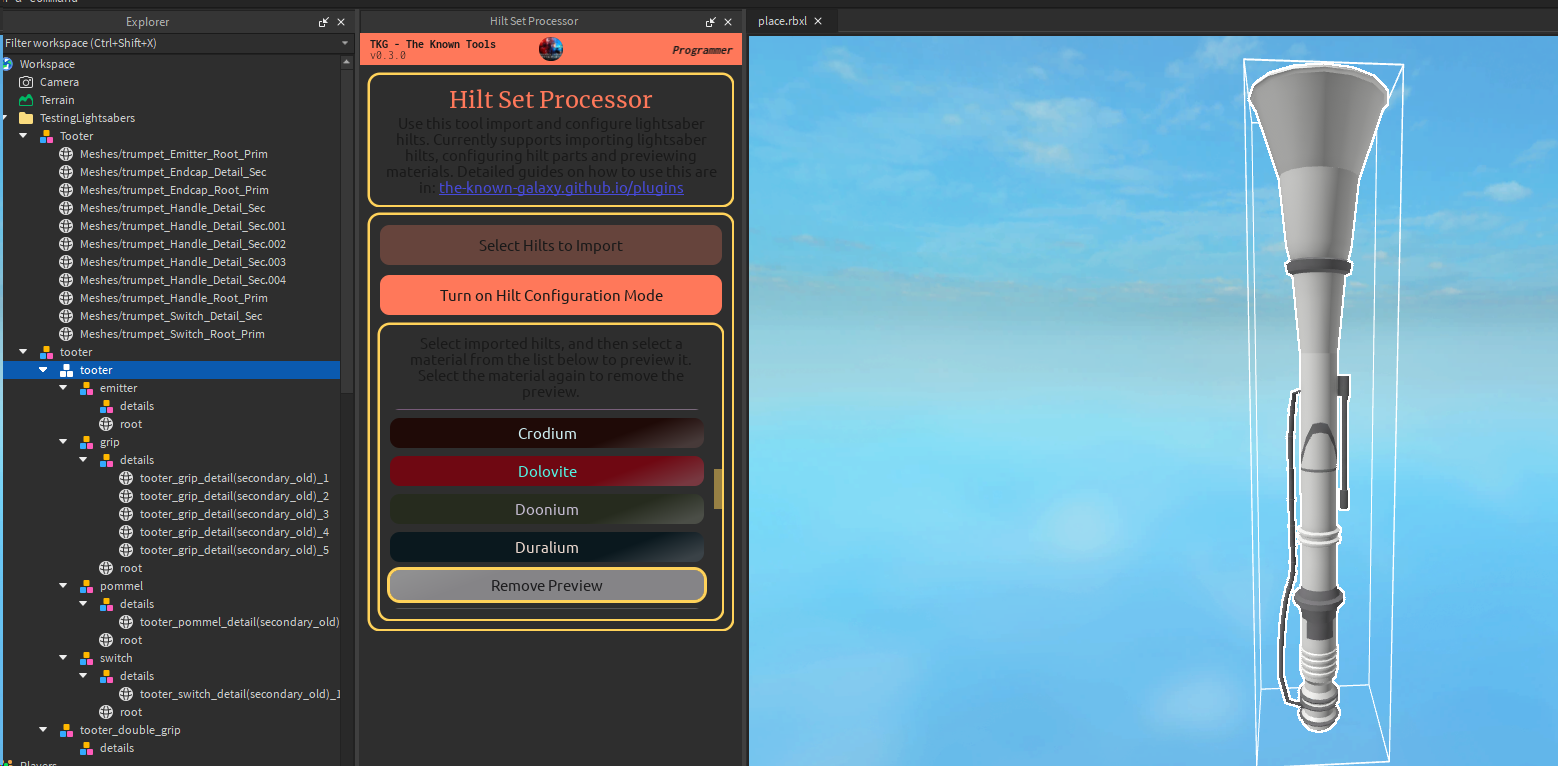
Notice how that part, since it's not a primary part instead of a fixed part, is now coloured white!
Validating Hilts
Once you are done with importing/configuring a hilt, you may wish to validate it to ensure you have made no mistakes in editing it. Doing this is as simple as:
- Selecting the model(s) you wish to verify are correct lightsaber hilts.
- Pressing the "Validate x Hilts" button.
- Reading the validation results from the Output (opened from
View > Show > Output- 2nd column 1st item).
Failed validations are highlighted in orange in the Output tab. When they fail, they provide very verbose descriptions taken directly from the raw validation outputs. They are not the cleanest to read, but they provide the most accurate information to you in telling you what's wrong.
Take your time reading them!
Here we see a validation succeeding:

And here we see a validation failing:
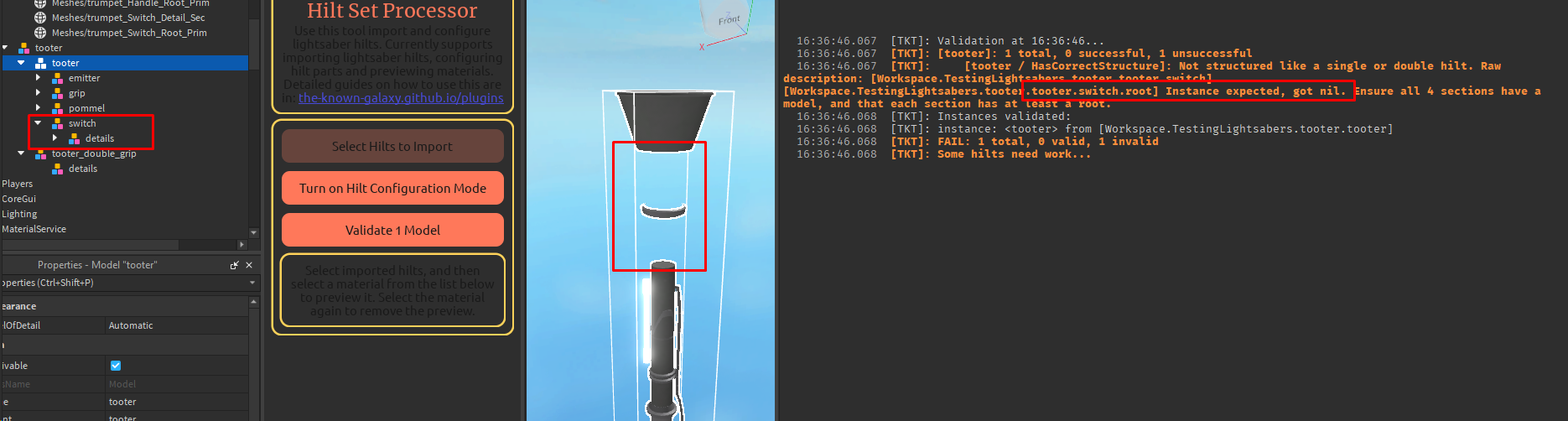
Visualisation
Root Parts
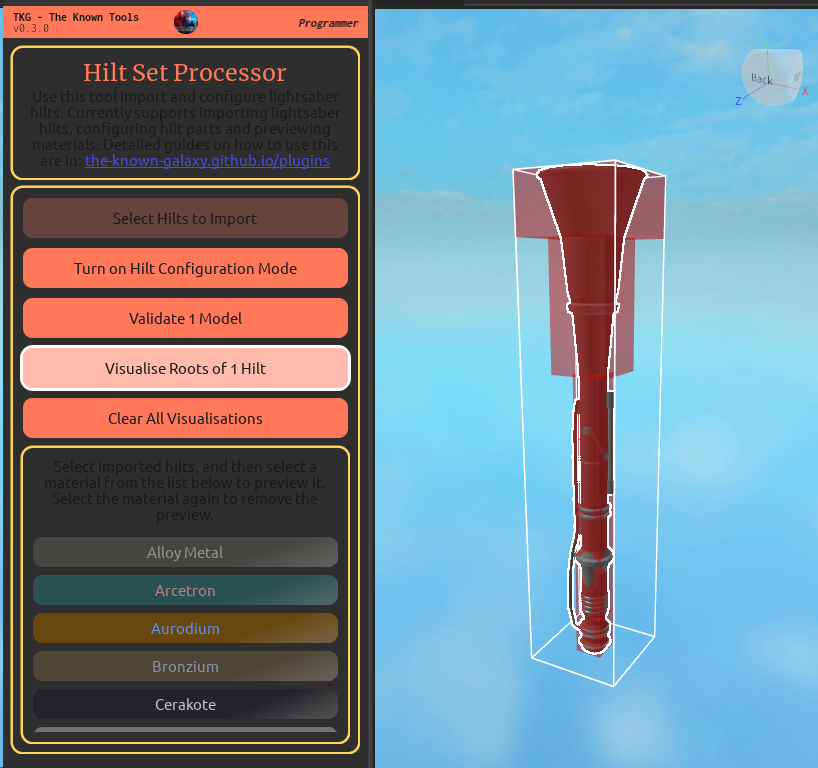
Since the root parts are the sole driving components that determine how the saber will be mounted on benches and held in hands, it is often useful to visualise the root parts exclusively. Therefore, a utility for this purpose exists: